Back up iPhone on Windows with Apple’s free Apple Devices app and you get a complete local copy of your phone: messages, contacts, call history, notes and settings, saved on your own PC instead of in iCloud. It takes a few clicks and then runs on its own. Below is exactly what to click, where Windows puts the backup, how much room it needs, and what to do if your C: drive is too small.
What you need
- A Windows 10 or Windows 11 PC.
- The Apple Devices app from the Microsoft Store (it replaced iTunes for iPhones on Windows). An older iTunes install also works.
- A USB cable for your iPhone.
- Free disk space at least as large as the data on your phone. Check it on the iPhone under Settings, General, iPhone Storage.
Step by step
- Install Apple Devices from the Microsoft Store and open it.
- Plug in the iPhone, unlock it, and tap Trust when it asks whether to trust this computer. Enter your passcode.
- Select your iPhone in the app’s sidebar and open the General section.
- Under Backups, choose the option to back up all of the data on your iPhone to this PC.
- Decide on encryption. An encrypted backup also keeps saved passwords, Wi-Fi networks and Health data. To read your messages with Text Rewind, leave Encrypt local backup off; your texts are included either way.
- Click Back Up Now and keep the phone connected until it finishes. The first backup is the slowest; later ones only copy what changed.
Where Windows saves the backup
The Apple Devices app and the Microsoft Store version of iTunes save backups here:
C:\Users\YOUR-NAME\Apple\MobileSync\Backup
The older iTunes from Apple’s website uses %APPDATA%\Apple Computer\MobileSync\Backup instead. Each backup is a folder with a long name made of letters and numbers, one per device. Inside are hundreds of folders with two-character names; that is normal, the files are stored by a hashed name rather than their original one.
Shortcut: in any Windows folder window, paste %USERPROFILE%\Apple\MobileSync\Backup into the address bar and press Enter.
Not enough space on C:
The app always writes to your C: drive and has no setting to change it. If the backup fails partway, or the drive fills up while it runs, move the backup folder to a bigger drive and leave a link behind:
- Close Apple Devices.
- Move the whole
Backupfolder to the other drive, for exampleD:\iPhone Backups. - Open Command Prompt and run
mklink /J "%USERPROFILE%\Apple\MobileSync\Backup" "D:\iPhone Backups" - Open Apple Devices and back up again. It follows the link and writes to D:.
Why photos in Messages may be missing
If Messages in iCloud is turned on, iOS keeps most message photos and videos in iCloud and leaves them out of computer backups, so the backup can hold every text but only a fraction of the attachments. To include them, turn off Messages in iCloud on the phone (Settings, your name, iCloud, Messages) and pick the option that downloads your messages, wait for the download to finish, then back up. Expect the backup to grow a lot.
Read your messages from the backup
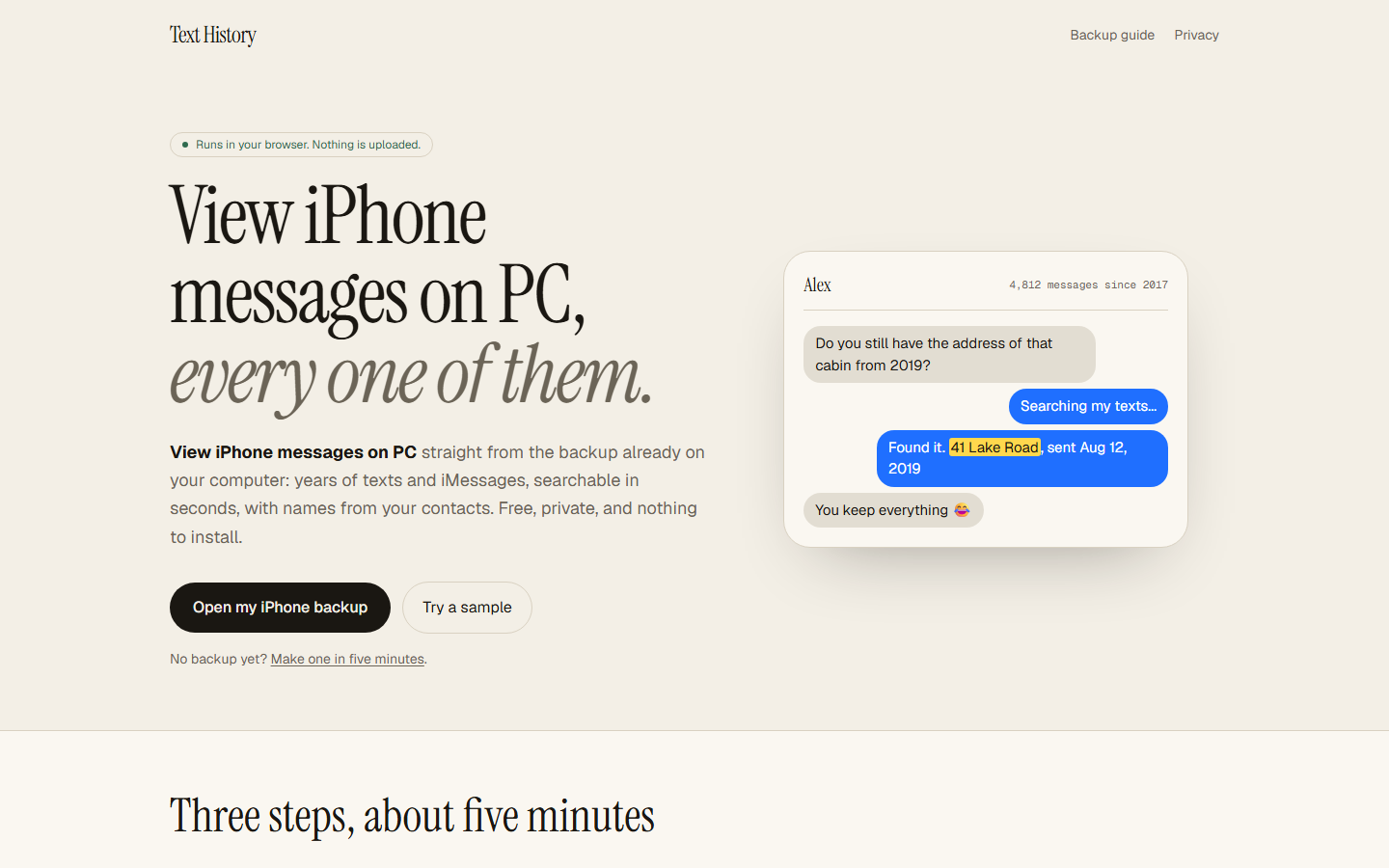
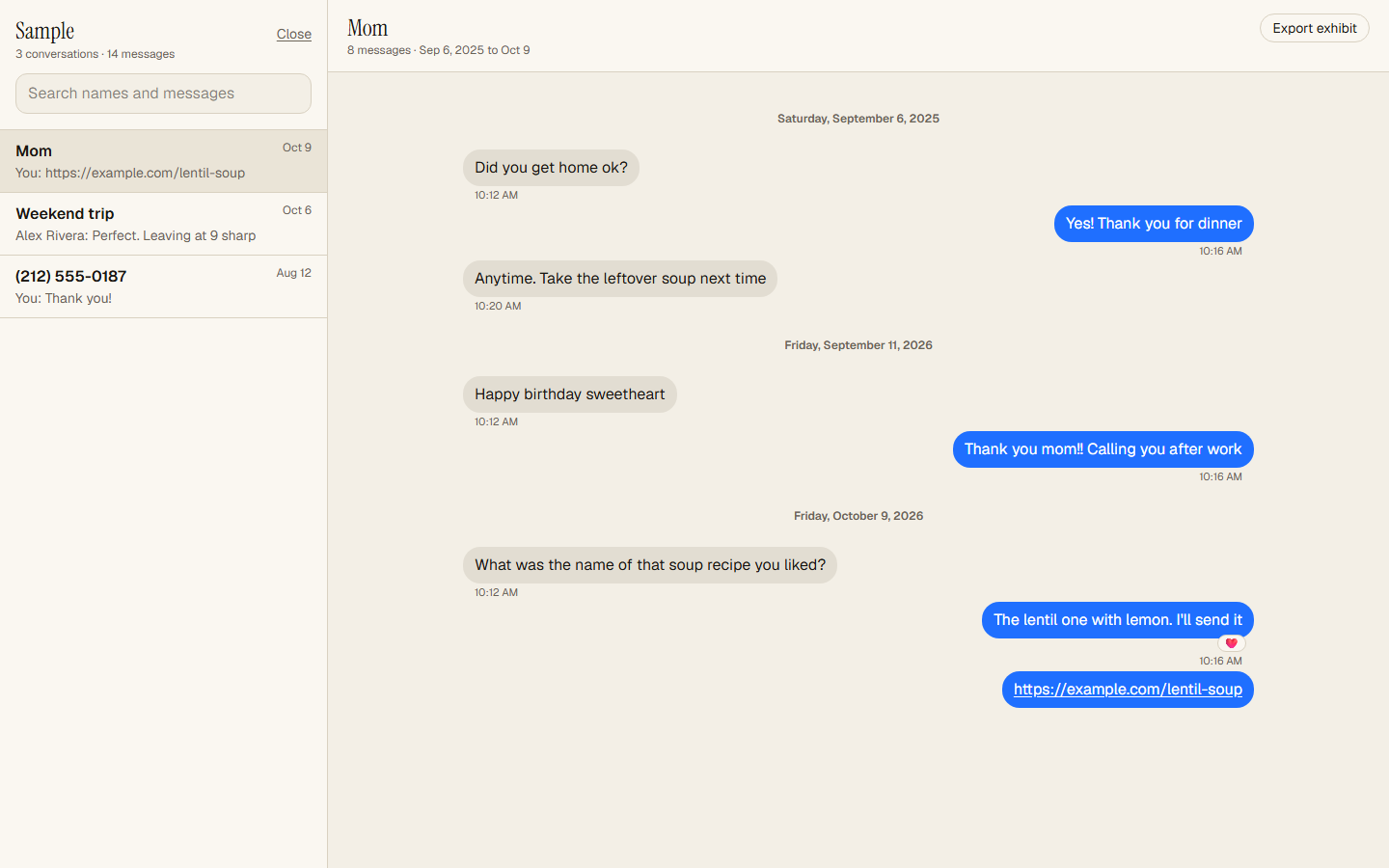
Once the backup finishes, open Text Rewind in Chrome or Edge, click Open my iPhone backup and pick the Backup folder. Your conversations appear in a few seconds, searchable, with names from your contacts. Nothing is uploaded: the page reads the folder inside your browser.
Common problems
- The iPhone doesn’t show up: unlock it, tap Trust again, and try a different USB port or cable.
- “Backup failed” partway: usually disk space. Free space on C: or use the link trick above.
- It asks for a password you don’t remember: that is the backup encryption password. You can reset it on the iPhone under Settings, General, Transfer or Reset iPhone, Reset All Settings (this resets settings, not data).